
Your campaign stopped at 43 invitations and your account now says you have reached your weekly quota. Nothing is broken. You met one of the LinkedIn limits, the caps the platform applies to every profile, free or Premium, manual or automated. The bad news first: you cannot buy your way past them, and no tool lifts them.
The good news is that they are predictable, they reset on a schedule, and several channels never touch your invitation counter at all. This guide lists every LinkedIn limit that matters when you prospect, what triggers a restriction, what to do once you are blocked, and how Waalaxy keeps your account safe with quotas and delays. 👇
Every LinkedIn limit in one table
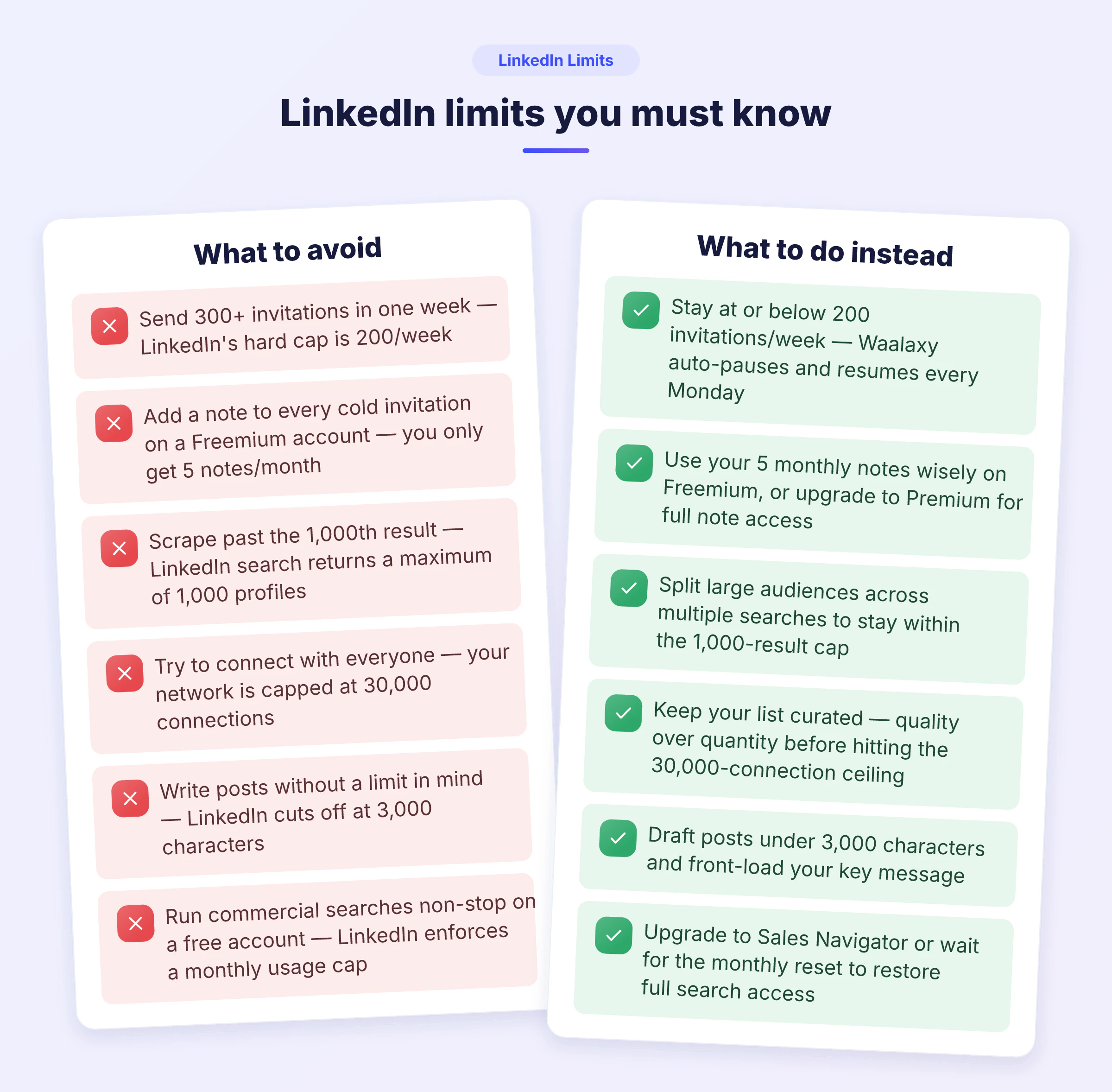
LinkedIn has never published a single page listing all of its caps. The numbers below are the ones the platform enforces in practice, cross-checked with its own help pages and with what we see on accounts that run campaigns every single day. Two of these LinkedIn limits matter far more than the rest when you prospect: the weekly invitation limit and the commercial use limit.
What is capped | The limit | Who it applies to |
|---|---|---|
Connection invitations | 200 per week | Every account, free and Premium |
Invitation notes | 5 per month, 200 characters | Free LinkedIn accounts only |
Re-inviting the same person | 3 weeks after withdrawing | Every account |
Profile views (commercial use limit) | Monthly, undisclosed | Free and Premium, lifted with Sales Navigator |
Search results | First 1,000 profiles | Free accounts |
First-degree connections | 30,000 | Every account |
Post length | 3,000 characters | Every account |
InMail credits | Depends on the plan | Premium, Sales Navigator, Recruiter |
Two lines deserve a comment. The search result cap is the reason an import stops early: past the first thousand profiles, LinkedIn stops serving results, and there are ways to access more than 1000 results in a LinkedIn search by splitting your query. The commercial use limit is sneakier: once you cross it, profiles show up as LinkedIn Member and cannot be imported at all, which looks like a bug and is only a counter doing its job.
If you only remember one figure, remember this one: 200 invitations per week, and no subscription, no tool and no trick changes it. Everything else in this guide follows from there.
What happens when you hit a LinkedIn limit
Hitting one of the LinkedIn limits is not a ban. Most of the time the platform stops executing the action, tells you so, and everything restarts on its own a few days later. A restriction notice is a different story, and knowing which of the two you are facing saves you a panicked weekend.
The message you see, and what it actually means
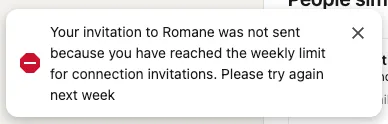
When the weekly ceiling is reached, LinkedIn displays a notice telling you that you have sent too many invitations and asks you to try again later. Its help page on invitation limits confirms the behaviour without giving a number. Nothing is lost: the pending requests you already sent stay in place, and your account stays fully usable for messages, posts and profile views.
When the counter resets
Of all the LinkedIn limits, this is the one with the clearest schedule. The invitation counter is a rolling weekly one, and it frees up at the start of the following week. Waalaxy mirrors that behaviour: invitations that could not be sent are held back and leave on their own the following Monday, without you touching anything. That is also why a campaign launched on a Thursday looks stuck over the weekend and starts breathing again on Monday morning.
After a warning, slow down before scaling back up
LinkedIn watches sudden changes in activity, not the fact that you use a tool. A spike in invitations, profile views or messages is what triggers a warning, and the platform reads it as a pattern change rather than as a volume you are entitled to.
First warning, usually a 24 to 48 hour restriction: log out of Waalaxy for 24 to 48 hours, then restart gently.
Second warning: stay logged out until the restriction is fully lifted, then cut your daily volume in half for a few weeks.
In both cases, avoid large imports and keep the number of prospects active across campaigns low. The full recovery routine is detailed in the guide on a LinkedIn account restricted.
The reflex is the same in both cases: stop, wait, then resume at a lower volume for a week or two. An account that slows down on its own almost always comes back. An account that pushes through a warning rarely does.
If you want the detailed playbook for that specific case, the article on what to do when you have reached your weekly invitation limit walks through it screen by screen.
Can you raise your LinkedIn limits?
Short answer: no, and anyone promising otherwise is selling something. You can protect the ceiling you have, you can use channels that sit outside the counter, and you can make every invitation count more. What you cannot do is buy a bigger allowance. Three ideas circulate on this topic, and two of them are folklore.
The Social Selling Index myth
You will read that a Social Selling Index above 70 doubles your weekly allowance, sometimes with a precise figure attached. LinkedIn has never documented any link between that score and the invitation cap. The SSI measures how you use the platform, it is a nice dashboard for a sales team, and it is a good reason to be active. It is not a key to a bigger quota, and the articles that promise one are repeating each other rather than a source. If you want the real use of that score, our guide on the LinkedIn SSI score explains what it measures and how to move it.
Premium and Sales Navigator change what you see, not what you send
A paid LinkedIn plan removes the commercial use limit, opens better filters and hands you InMail credits. It changes your LinkedIn limits on the reading side, never on the sending side. None of that touches the weekly invitation ceiling. A Sales Navigator seat is worth its price for targeting, and it is the right answer if you keep running into search caps or want unlimited LinkedIn searches. It is the wrong answer if your plan was to send more connection requests.
What genuinely protects your ceiling
Three habits do more for your volume than any workaround, because they keep LinkedIn from tightening your LinkedIn limits in the first place. None of them is glamorous, all of them compound. 🌱
Warm up a young account: reach 200 to 300 connections manually, post, comment, then automate.
Watch your acceptance rate. Invitations that get ignored or marked as I do not know this person are exactly what pushes LinkedIn to restrict an account, so a tighter target list beats a bigger one.
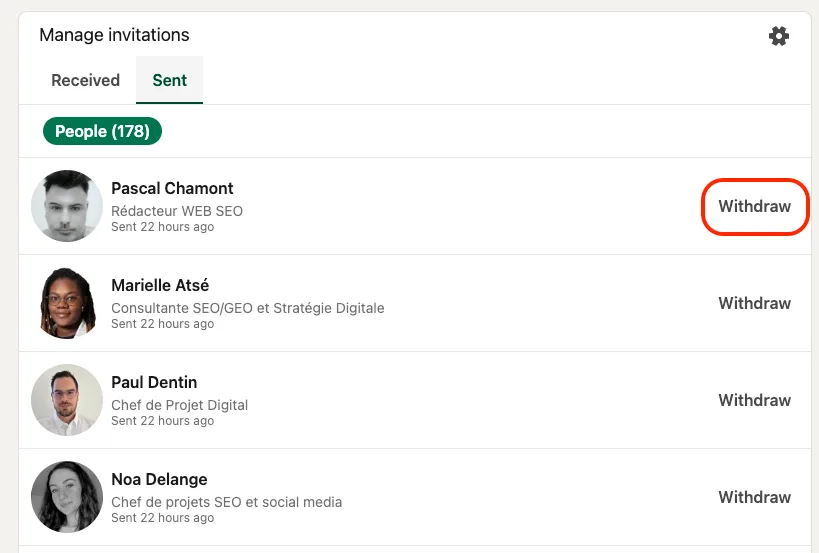
Clean your pending invitations. Withdrawing old unanswered requests costs nothing and a long queue signals low quality outreach.
That last point is often skipped because nobody explains where the button is. The guide on how to cancel a connection request covers the bulk operation, and the one on how to increase the acceptance rate of your requests explains what makes people click accept in the first place.
If you do want to use a note, at least make it worth the character count: these LinkedIn invitation message samples are a better starting point than the default template everyone sends.
Reach prospects without using your invitation quota
This is where the real workarounds live. None of them raises your LinkedIn limits. All of them let you talk to someone new without spending one of your 200 weekly invitations, which amounts to the same thing at the end of the month.
Open profiles, the free InMail
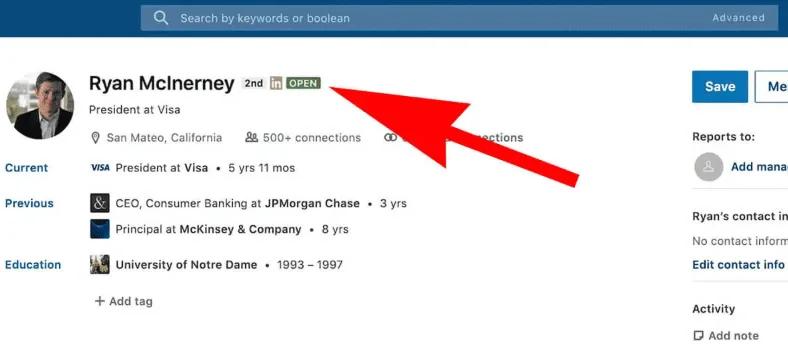
Members who switched on the Open Profile option can be messaged directly, without being connected and without spending a credit. On a Sales Navigator search they are easy to spot, and on a list of decision makers they usually represent a meaningful share. It costs you nothing but the time to write.
Group members and event attendees
Sharing a group with someone, or attending the same LinkedIn event, opens a messaging path that does not go through a connection request. Event attendees are the stronger signal of the two: they chose a topic, on a date, which gives you a first line that writes itself. Picking the right LinkedIn groups takes a bit of sorting, most are dormant. LinkedIn has tightened group messaging over the years, so treat it as a complement, not as a pipeline.
InMails, when the account is worth the credit
InMail is the paid path: a Sales Navigator or Recruiter plan gives you a monthly stock of credits counted separately from invitations. Worth using on a shortlist of accounts rather than on a volume play, and worth understanding before you spend them, since InMail credits do not roll over forever. One clarification, because other guides are vague about it: Waalaxy does not send InMails. It is a LinkedIn Premium feature, so you send those from LinkedIn directly.
Email, the channel with its own counter
The cleanest way to stop fighting a single counter is to stop depending on a single channel, and cold email is the obvious second lane. A prospect who never accepted your invitation can still read an email, and email sending limits are set by your provider, not by LinkedIn. Getting the address is the only real step, and an email finder does that from a LinkedIn profile. That is what makes a multi-channel prospecting campaign hold up when LinkedIn tightens.
If you want to test the idea on a list you already have, this tool enriches LinkedIn profile URLs with professional email addresses, without importing anything into your account.
One workaround you will find elsewhere deserves a warning: syncing your address book to send invitations that escape the counter. It works, it has always been fragile, and LinkedIn already closed the CSV version of it. Building a prospecting routine on a door that is halfway shut is a poor trade.
How Waalaxy works with LinkedIn limits instead of against them
Waalaxy applies its own ceiling below the LinkedIn limits. Two mechanisms do the work: daily quotas, which decide how many actions leave your account each day, and delays, which decide how far apart they leave. Together they keep your activity inside a range that looks like a human using LinkedIn a lot, rather than a script.
Daily quotas by plan
Quotas are calculated daily, per action type, and shared across all your campaigns since everything goes through the same queue. On a Team plan they are counted per member, so a colleague sending invitations never eats into your own allowance.
Action | Pro | Advanced and Business |
|---|---|---|
Invitations | 11 per day, 300 per month | 100 per day, 200 per week |
Messages | 120 to 150 per day | 120 to 150 per day |
Profile follows | 80 to 100 per day | 80 to 100 per day |
Profile visits | 120 to 150 per day | 120 to 150 per day |
Starting out, you get a 14 day free trial to run real campaigns before committing to a plan. And whatever the plan, the weekly LinkedIn ceiling always wins: hitting either the daily quota or the 200 weekly invitations stops execution, even when the other one still has room.
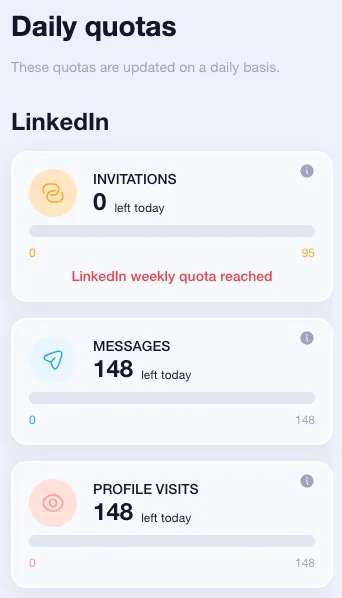
You will find those counters in the Queue tab of your account. The same screen also shows the prospecting actions waiting to leave, which is the quickest way to understand why a campaign looks idle.
Why your daily volume is never exactly the same
Set your quota to the maximum and you will still see a different number of actions every morning, and the randomised daily volume is the reason. That is on purpose: Waalaxy draws a random value between 80 and 100 % of the configured maximum each day, because a perfectly constant volume is one of the easiest patterns to fingerprint. You can lower a quota below the plan maximum, never above it, and the change applies at the next daily reset rather than instantly.
Delays between two actions
Inside the queue, actions of the same type are spaced out on purpose, and the delay between actions cannot be shortened.
1 minute between two profile follows.
1 minute between two profile visits.
2 minutes 30 between two invitations.
2 minutes 30 between two messages.
A random variable of 20 % is applied on top, so no two intervals are identical. Draining a full day of every action type takes close to 17 hours on Advanced or Business, which is the real throughput of a LinkedIn account over 24 hours, and the reason a large campaign spreads over several days rather than a single afternoon.
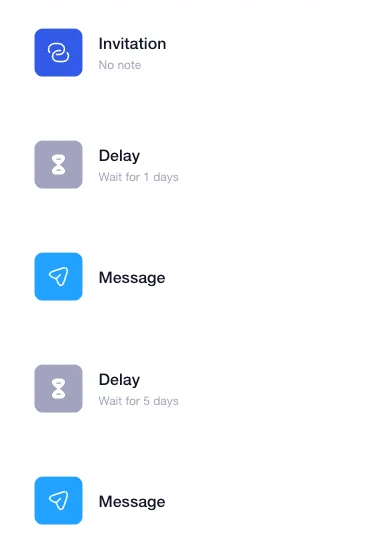
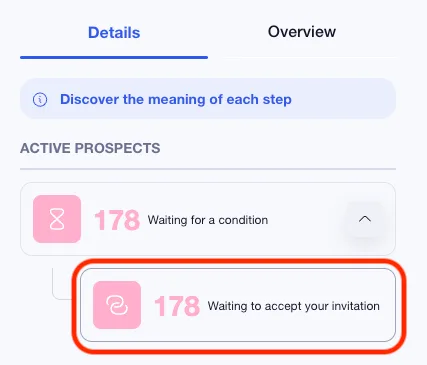
Campaign delays are a different thing from queue spacing. Inside a sequence, a campaign delay is the waiting time between two steps, or the window a prospect has to meet a condition, like accepting your invitation before the first message goes out. That is the backbone of any automated LinkedIn connection campaign, and it is what stops a follow-up from landing two minutes after a request.
Invitations that get postponed
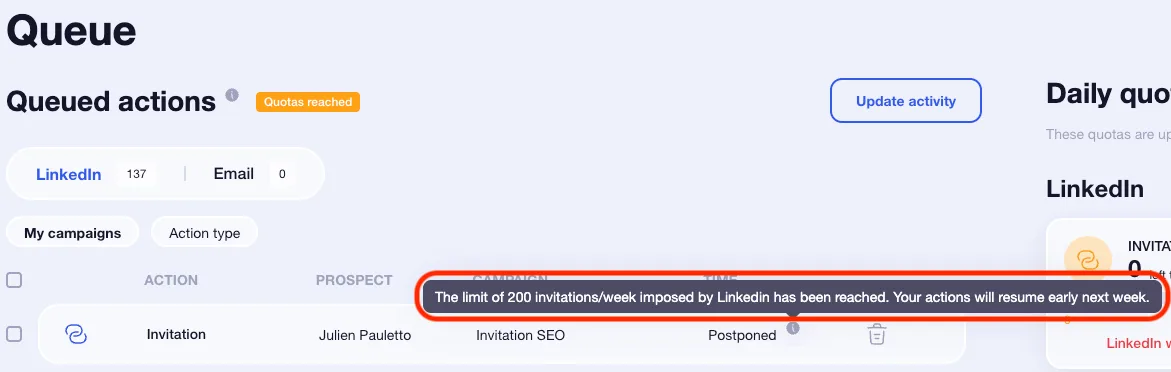
When the weekly LinkedIn ceiling is reached, invitations in your campaigns switch to a Postponed status instead of failing. They leave the following week, automatically, in the order they were queued. Filtering on that status inside a campaign tells you exactly how many prospects are waiting and how long your backlog really is. Nothing is lost, everything is just queued. 😌
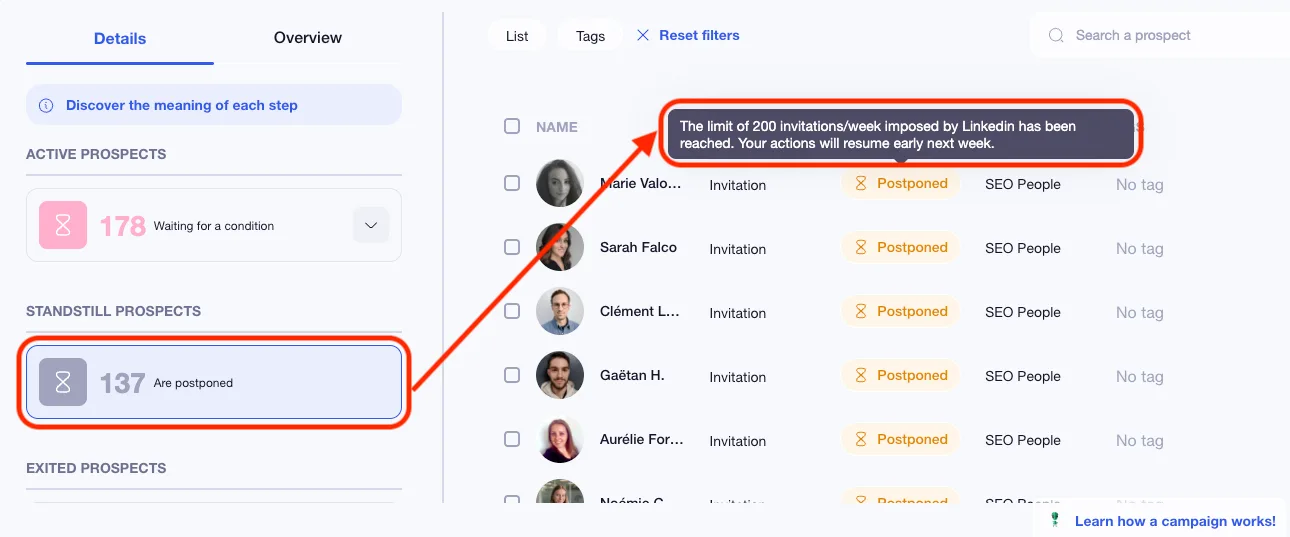
So yes, it is perfectly normal to hit your weekly quota without ever touching your daily one, especially on Advanced or Business where 100 invitations a day would empty the weekly allowance in two sittings.
LinkedIn limits: key takeaways
LinkedIn limits are not a wall built against you, they are the price of a platform that fights spam on behalf of its users. Of all the LinkedIn limits, the ceiling of 200 invitations per week is the one that shapes a prospecting plan, and nothing lifts it: not a Premium plan, not a high SSI, not a tool. What changes your results is what you do with the invitations you have, and which channels you add next to them.
So build your week around the cap rather than against it: a tight target list, a prospecting message worth answering, a clean pending queue, and email as a second lane for everyone who never accepted. Waalaxy handles the arithmetic part with quotas, delays and postponed actions, and leaves you the part that actually moves the needle.
FAQ: LinkedIn limits
It is 200 connection requests per week, on every account, free or Premium, and it is the strictest of the LinkedIn limits for anyone doing outreach. The figure of 100 per week that still circulates is the previous cap. LinkedIn does not display a live counter, so the first sign that you reached it is a message telling you to try again later, or invitations that stop leaving your campaigns. Waalaxy handles that case on its own by moving the pending invitations to a Postponed status until the following week.
The invitation counter frees up at the start of the following week, which is why blocked campaigns restart on their own on a Monday. Not every counter follows the same clock, and that is where most LinkedIn limits get confusing. Two nuances are worth knowing:
The reset applies to what you sent, not to what is still pending. Old unanswered requests keep sitting in your queue until you withdraw them.
The commercial use limit on profile views is a separate, monthly counter, and it resets on its own schedule.
Withdrawing an invitation also starts a 3 week cooldown before you can invite the same person again, so clean your queue with a bit of method rather than in bulk.
LinkedIn caps the week, not the day, so among the LinkedIn limits this one leaves you the pacing decision. Spreading 200 invitations over five days, around 40 invitations a day, looks far more natural than firing them in two sessions. Waalaxy applies a daily quota per plan on top of that: 11 invitations a day on Pro, up to 100 a day on Advanced and Business. If you want the detail per action type, the page on LinkedIn maximum connections per day breaks it down.
No. Premium and Sales Navigator remove the commercial use limit, open better search filters and give you InMail credits, and none of that touches the weekly invitation ceiling. The value of a paid plan is in targeting and in the number of profiles you can actually see, which matters if your searches keep hitting the cap. For sending, a free account and a Sales Navigator account are on equal footing.
Because the daily volume is randomised between 80 and 100 % of the maximum you configured. A quota set at 100 invitations will send somewhere between 80 and 100 on any given day, and that variation is what keeps your activity from looking mechanical. Two other reasons can explain a low day: the weekly LinkedIn ceiling is already reached, or the queue has not had time to drain, since a full day of actions takes close to 17 hours to process.
No. Delays cannot be changed on a campaign that is running or paused, because prospects already past the old deadline would end up in an inconsistent state. To use different delays, duplicate the campaign and set them before launching. Inside a sequence, a delay can be set from 0 to 28 days, and a delay of 0 days means a random wait of 0 to 2 hours rather than an immediate send. One last detail that surprises everyone: if a delay ends on a day you excluded from your sending schedule, the action waits for the next working day, so a delay that ends on a Saturday leaves on Monday.